Adding videos to the flipbook can increase engagement and visual appeal. Videos can provide additional context, explanation, or detail about the presented content. Adding videos to the flipbook can improve the reader’s understanding of the content.
Local Video #
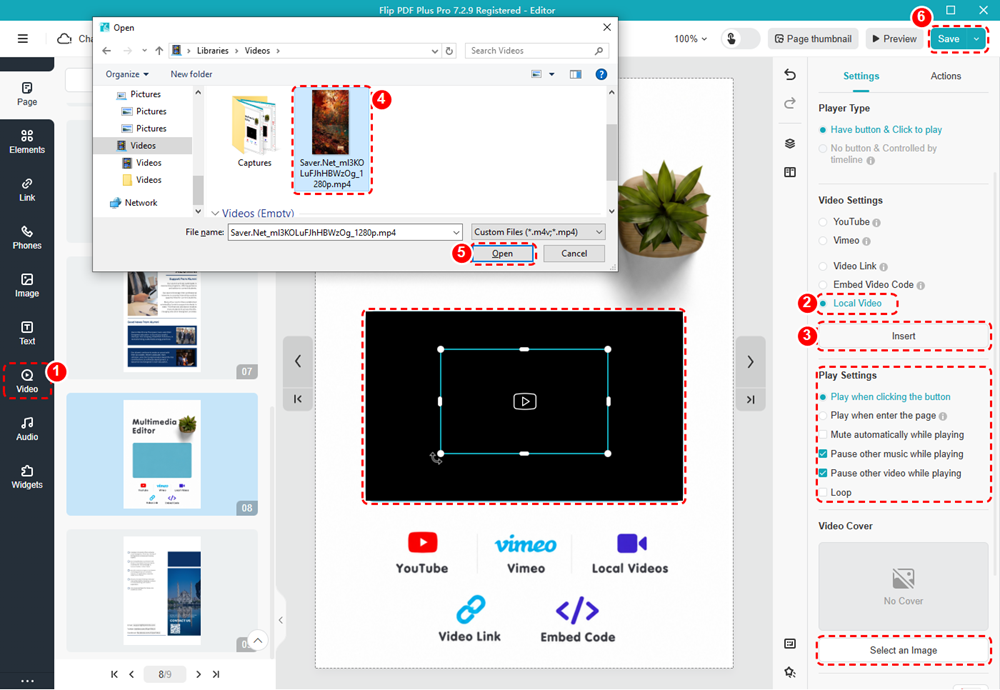
In the Multimedia Editor, click [Video] on the left toolbar -> select [Local Video] on the right toolbar -> click [Insert] to upload your video from the local file -> click [Save].
After uploading the video, you can customize the play settings, size, position and video cover.
YouTube Video #
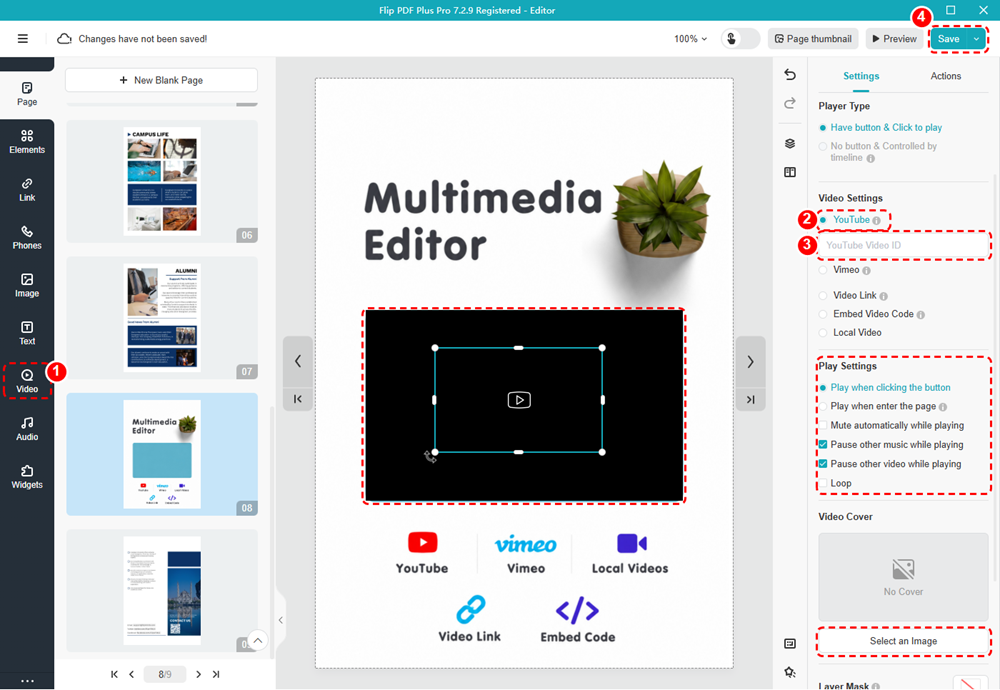
Click [Video] on the left toolbar -> select [YouTube] and paste the YouTube Video ID in the blank box -> click [Save].
Vimeo Video #
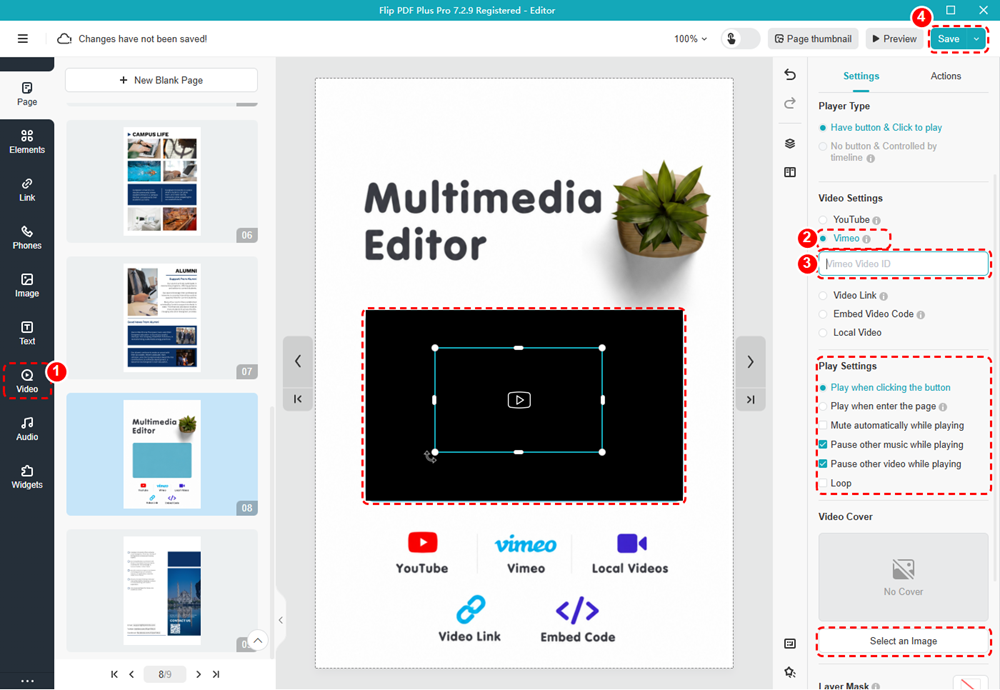
Click [Video] on the left toolbar -> Select [Vimeo] and paste your Vimeo Video ID in the blank box -> click [Save].
Video Link #
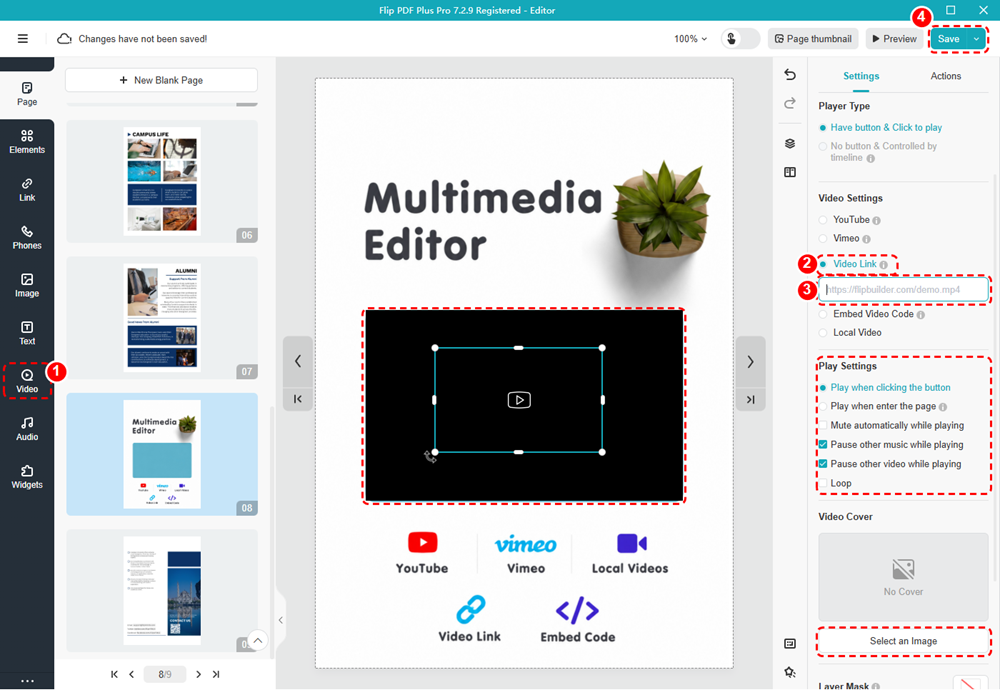
Click [Video] on the left toolbar -> select [Video Link] and paste a direct video link ending in .mp4 in the blank box -> click [Save].
Embed Code #
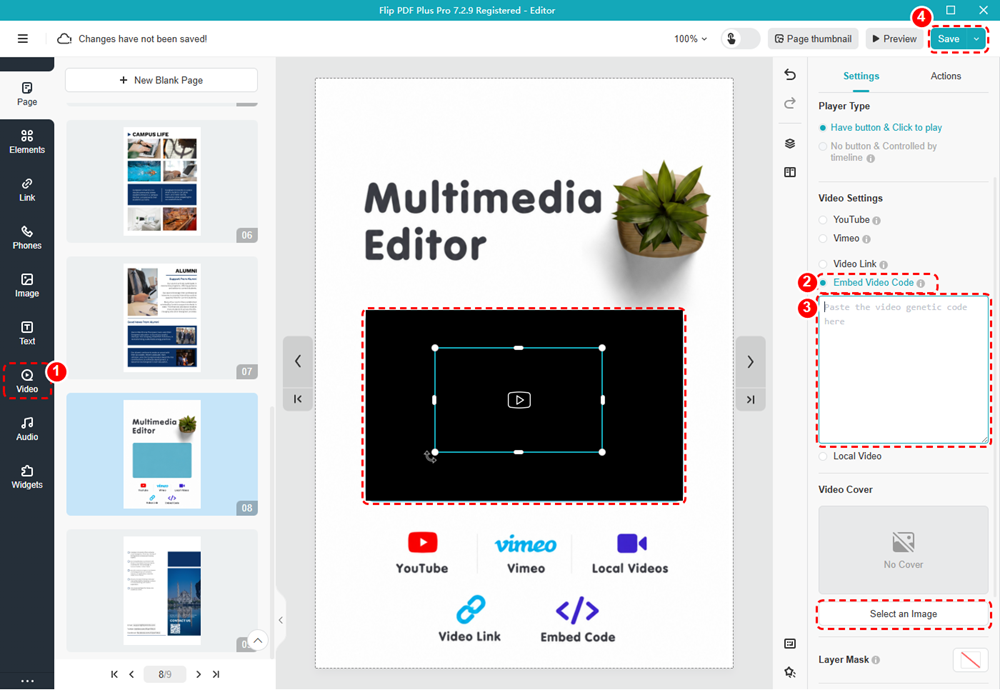
Click [Video] on the left toolbar -> select [Embed Video Code] and paste your video embed code in the blank box -> click [Save].
Note: Only ‘Flip PDF Plus Pro’ and ‘Flip PDF Plus Corporate’ come with a multimedia editor.


