If you encounter issues like being unable to open/save projects, unable to launch the software, unable to convert PDFs or unable to activate the program. Below are some simple solutions you can try:
對於 Windows #
管理員帳戶 #
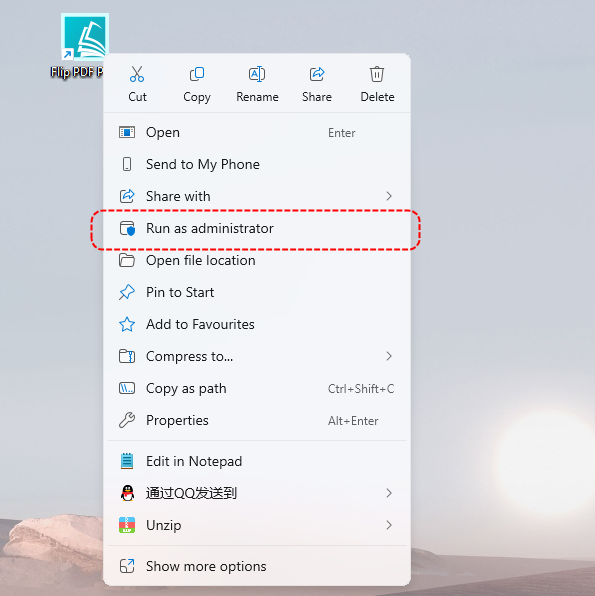
標準用戶帳戶 #
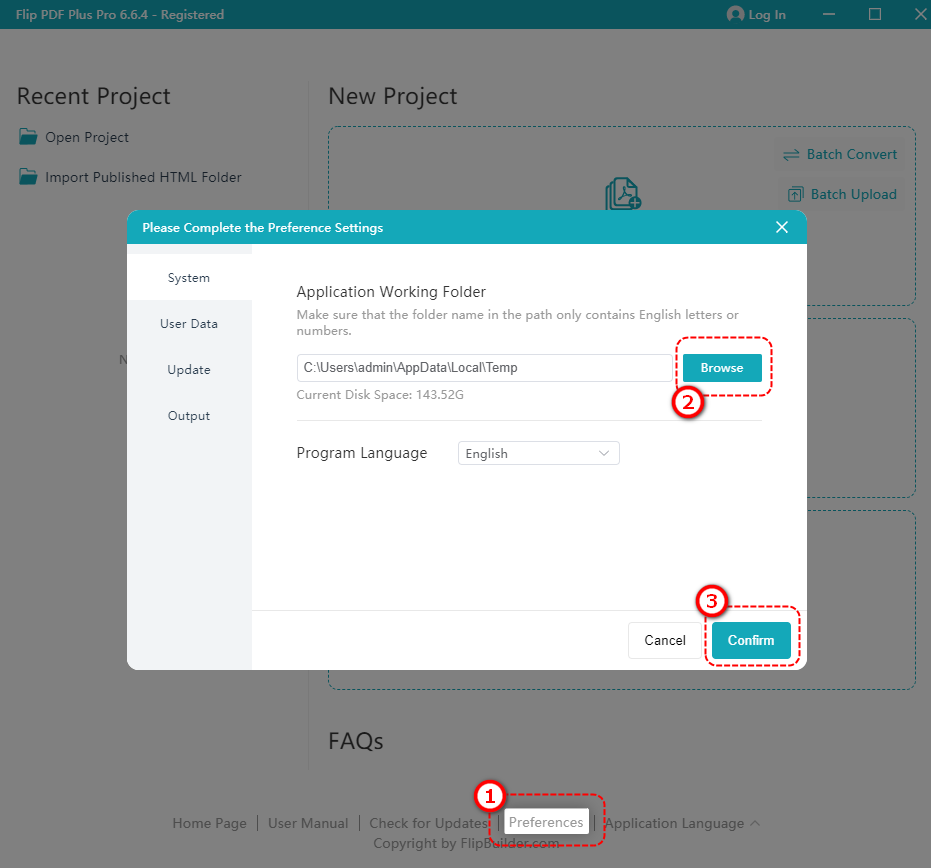
更改暫存目錄:將軟體的暫存目錄變更為非系統磁碟機。
在Flip PDF Plus/Pro/Corporate上傳介面,點選 [偏好設定] 在底部 -> 點擊 [瀏覽] to change to a non-system drive -> [確認]
重新安裝和清除快取 #
If the above steps do not resolve the issue, try the following:
重新安裝程式:
- 解除安裝目前版本
- Download and reinstall the latest version from the 官方網站.
刪除快取目錄 : 重新安裝後,您需要刪除程式的快取目錄。這有助於確保沒有損壞的檔案導致問題。
Flip PDF Plus Corporate 使用者可以刪除位於下列位置的資料夾:
C:\Users\AppData\Roaming\com.wonderidea.newflippdfcorp
C:\Users\AppData\Roaming\FlipPDFPlusCorp
Flip PDF Plus Pro 使用者可以刪除位於下列位置的資料夾:
C:\Users\AppData\Roaming\com.wonderidea.newflippdfpro
C:\Users\AppData\Roaming\FlipPDFPlusPro
Flip PDF Plus 使用者可以刪除位於以下位置的資料夾:
C:\Users\AppData\Roaming\com.wonderidea.newflippdf
C:\Users\AppData\Roaming\FlipPDFPlus
重新啟動程式: 完成後,嘗試再次執行該程式。
對於 macOS #
重新安裝和清除快取 #
重新安裝程式:
- 解除安裝目前版本
- Download and reinstall the latest version from the official website.
刪除快取目錄: 重新安裝後,您需要刪除程式的快取目錄。這有助於確保沒有損壞的檔案導致問題。
Flip PDF Plus Corporate用戶可以 d刪除位於下列位置的資料夾:
/使用者/$USERNAME/圖書館/ApplicationSupport/com.wonderidea.newflippdfcorp
/使用者/$USERNAME/圖書館/應用程式支援/FlipPDFPlusCorp
Flip PDF Plus 磷r哦 使用者可以刪除位於下列位置的資料夾:
/Users/$USERNAME/Library/ApplicationSupport/com.wonderidea.newflippdfpro
/Users/$USERNAME/Library/Application Support/FlipPDFPlusPro
Flip PDF Plus 使用者可以刪除位於下列位置的資料夾:
/使用者/$USERNAME/Library/ApplicationSupport/com.wonderidea.newflippdf
/使用者/$USERNAME/Library/Application Support/FlipPDFPlus
注意:將 $USERNAME 替換為你實際的 macOS 使用者名稱.
重新啟動程式: 完成後,嘗試再次執行該程式。
如果這些解決方案不起作用,你可以 聯絡我們的客戶支援團隊 以獲得進一步的幫助。


