If you encounter issues like being unable to open/save projects, unable to launch the software, unable to convert PDFs or unable to activate the program. Below are some simple solutions you can try:
윈도우용 #
관리자 계정 #
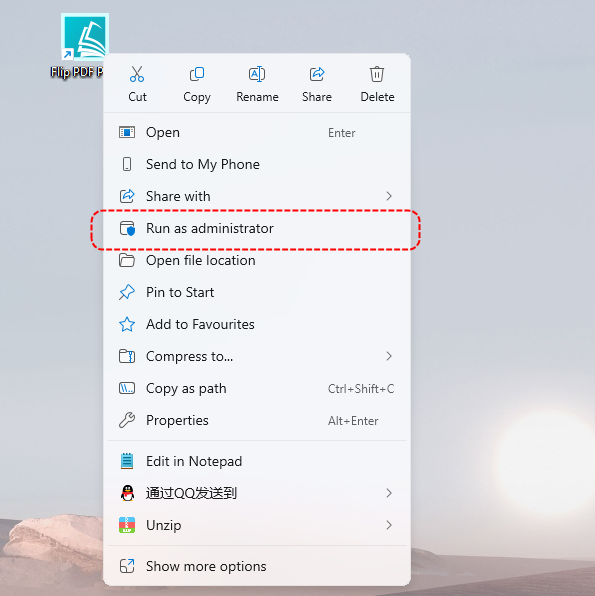
표준 사용자 계정 #
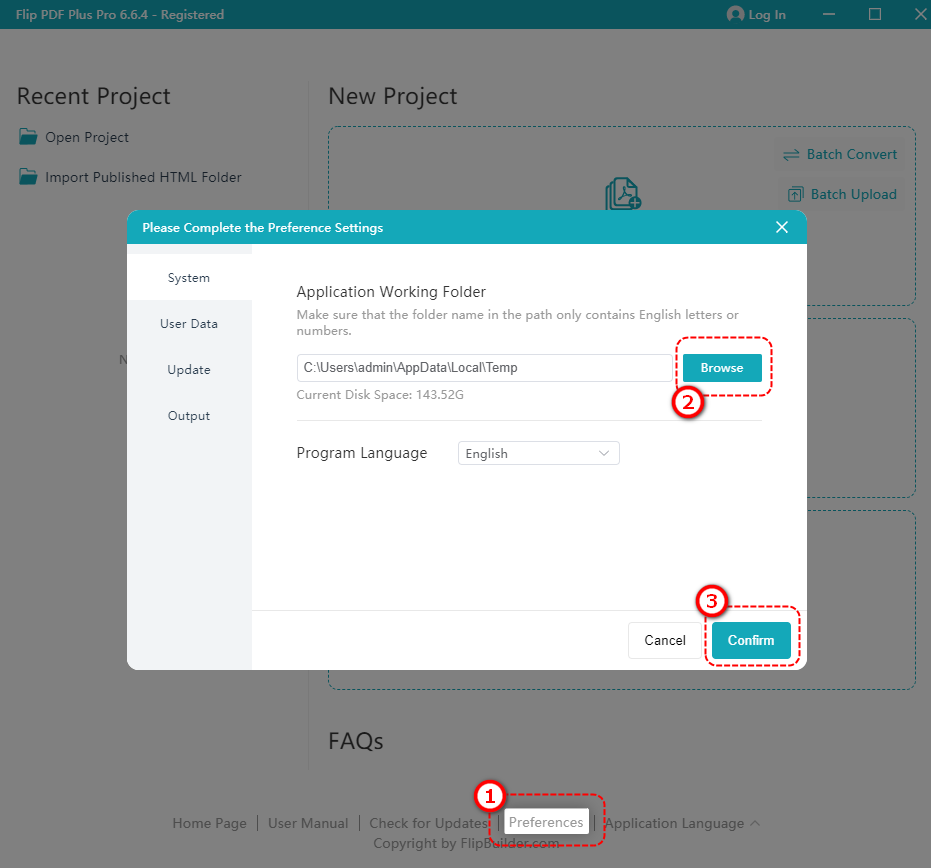
임시 디렉터리 변경: 소프트웨어의 임시 디렉토리를 시스템 드라이브가 아닌 다른 드라이브로 변경합니다.
Flip PDF Plus/Pro/Corporate 업로드 인터페이스에서 다음을 클릭하세요. [환경 설정] 하단 -> 클릭 [검색] to change to a non-system drive -> [확인하다]
재설치 및 캐시 지우기 #
If the above steps do not resolve the issue, try the following:
프로그램을 다시 설치하세요:
- 현재 버전을 제거하세요
- Download and reinstall the latest version from the 공식 웹사이트.
캐시 디렉토리 삭제 : 재설치 후에는 프로그램의 캐시 디렉터리를 삭제해야 합니다. 이렇게 하면 손상된 파일이 문제의 원인이 되지 않는지 확인할 수 있습니다.
Flip PDF Plus Corporate 사용자는 다음 위치에 있는 폴더를 삭제할 수 있습니다.
C:\Users\AppData\Roaming\com.wonderidea.newflippdfcorp
C:\Users\AppData\Roaming\FlipPDFPlusCorp
Flip PDF Plus Pro 사용자는 다음 위치에 있는 폴더를 삭제할 수 있습니다.
C:\Users\AppData\Roaming\com.wonderidea.newflippdfpro
C:\Users\AppData\Roaming\FlipPDFPlusPro
Flip PDF Plus 사용자는 다음 위치에 있는 폴더를 삭제할 수 있습니다.
C:\Users\AppData\Roaming\com.wonderidea.newflippdf
C:\Users\AppData\Roaming\FlipPDFPlus
프로그램을 다시 시작하세요: 완료되면 프로그램을 다시 실행해 보세요.
macOS의 경우 #
재설치 및 캐시 지우기 #
프로그램을 다시 설치하세요:
- 현재 버전을 제거하세요
- Download and reinstall the latest version from the official website.
캐시 디렉토리 삭제: 재설치 후에는 프로그램의 캐시 디렉터리를 삭제해야 합니다. 이렇게 하면 손상된 파일이 문제의 원인이 되지 않는지 확인할 수 있습니다.
Flip PDF Plus Corporate 사용자는 디다음 위치에 있는 폴더를 삭제하세요:
/사용자/$USERNAME/라이브러리/애플리케이션지원/com.wonderidea.newflippdfcorp
/사용자/$USERNAME/라이브러리/응용 프로그램 지원/FlipPDFPlusCorp
Flip PDF Plus 피아르 자형영형 사용자는 할 수 있습니다다음 위치에 있는 폴더를 삭제하세요:
/Users/$USERNAME/Library/ApplicationSupport/com.wonderidea.newflippdfpro
/Users/$USERNAME/Library/Application Support/FlipPDFPlusPro
Flip PDF Plus 사용자는 다음 위치에 있는 폴더를 삭제할 수 있습니다.
/사용자/$USERNAME/라이브러리/애플리케이션지원/com.wonderidea.newflippdf
/사용자/$USERNAME/라이브러리/응용 프로그램 지원/FlipPDFPlus
참고: $USERNAME을 실제 macOS 사용자 이름으로 바꾸세요..
프로그램을 다시 시작하세요: 완료되면 프로그램을 다시 실행해 보세요.
이러한 솔루션이 작동하지 않으면 다음을 수행할 수 있습니다. 고객 지원팀에 문의하세요 추가 지원이 필요하면.


